---
title: Shopper Profile Sync for SFCC and Salesforce
canonical_url: 'https://okater.com/posts/sfcc-shopper-profile-sync/'
markdown_url: 'https://okater.com/posts/sfcc-shopper-profile-sync/index.md'
content_type: article
site_name: SFCC Field Notes
date: '2026-10-06'
lastmod: '2026-10-06'
author: Oleksandr Katerynchuk
description: >-
How to set up Shopper Profile Sync between B2C Commerce and a Salesforce org.
A video walkthrough, a checklist you can follow along with, how each sync
direction actually works, and the fine print behind "two-way".
tags:
- sfcc
- integration
---
If you ever had to get B2C Commerce customers into Salesforce Core, you know it used to be a project of its own. Most of the time that project was [b2c-crm-sync](https://github.com/SalesforceCommerceCloud/b2c-crm-sync), an open-source enablement framework. It was designed to teach the B2C customer data strategy, it is maintained by the community, and its README is very clear about what that means:
> Please remember that this project **should not be treated as Salesforce Product**. [...] Customers and partners implement this at-will with no expectation of roadmap, technical support, defect resolution, production-style SLAs.
So you owned all of it: a Node CLI, SFDX deployments, OCAPI and WebDAV permissions, JWT certificates, an Account Manager client, plus the Apex, Flows and Platform Events on the Core side. And it hasn't seen an update in about three years.
Now there is a native way. **Shopper Profile Sync** went GA in June 2026. You connect your B2C Commerce instance to a Salesforce org from Business Manager, set up a few rules in Core, flip a switch, and registered shoppers start showing up as Person Accounts. Edit one of those Person Accounts in Core, and the change lands back in Commerce about a minute later.
The Salesforce Connection you create along the way is also what Merchant Agent and Shopper Agent build on.
I recorded the whole setup on a sandbox, from connecting the two clouds to watching a profile travel both ways.
[Setting up Shopper Profile Sync between SFCC and Salesforce](https://customer-s2hy6afr8h81a1gk.cloudflarestream.com/41ed15c8d0a79a0dd00096400232da08/watch)
## Shopper Profile Sync or Unified Profile Sync?
Same feature, two names. The documentation, the release notes and the card in Business Manager all say **Shopper Profile Sync**. The feature switch says **Enable Unified Profile Sync Feature**, and the system job and the Business Manager API use "unified profile" too. I'll stick with Shopper Profile Sync here, but if you are searching for answers, try both.
## How it works: two directions, two mechanisms
"Two-way sync" sounds symmetric. It isn't, and that is the most useful thing to understand before you start.
```mermaid
flowchart LR
S[Shopper registers or edits profile] --> B2C[(B2C Commerce customer)]
B2C -->|"scheduled job every 30 min, 10 min on ODS"| PA[(Salesforce Person Account)]
PA -->|"event, about 1 min"| B2C
A[Service agent edits record] --> PA
```
**Commerce to Salesforce is a scheduled job.** A system job picks up new and changed profiles and pushes them to Salesforce. It runs every 30 minutes in production and every 10 minutes on on-demand sandboxes, up to 100,000 records per run. That cadence arrived in 26.9. Before that it was hourly, so if you read older threads complaining about the wait, that's why.
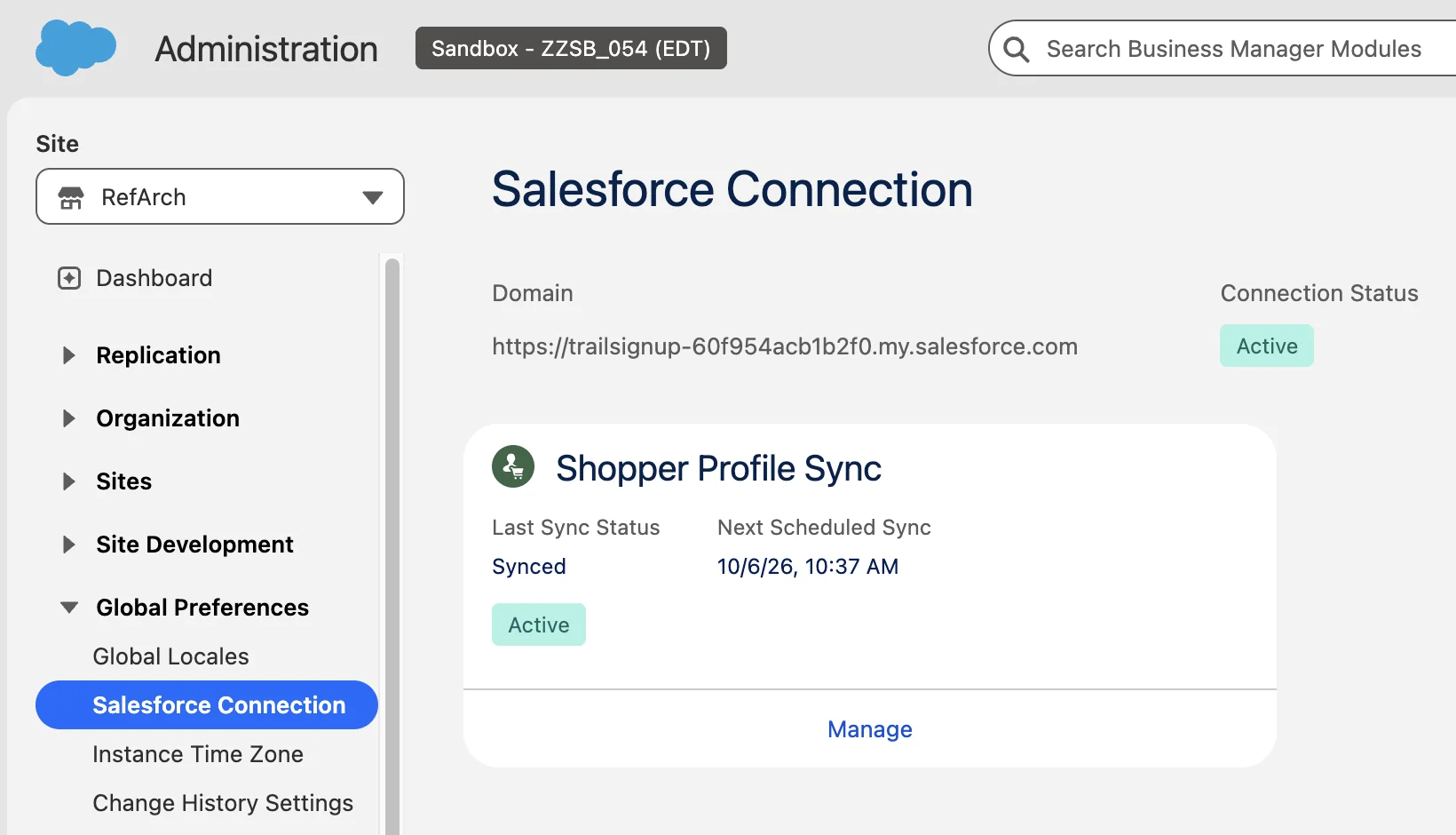
You don't have to guess when the next run is. The Shopper Profile Sync card under **Administration → Global Preferences → Salesforce Connection** shows the last sync status and the next scheduled sync:
The card tells you exactly how long you'll be staring at the Accounts list.
**Salesforce to Commerce is event-driven.** When someone edits a synced Person Account in Core, the change is pushed to Commerce right away. The docs say about a minute. In the video I renamed a shopper in Core, refreshed the storefront, and the new name was already there.
### The fine print behind "two-way"
- **Person Accounts are only created from the Commerce side.** If you create a Person Account by hand in Core, no B2C customer appears.
- **Updates go both ways, but only for linked records.** That means shoppers who went through the sync from Commerce first, or who got matched to an existing Person Account by your duplicate rules (more on that below).
- **Only registered shoppers sync.** Guest checkouts don't create Person Accounts through this feature.
- **Deletes don't sync.** Deleting a customer in Commerce leaves the Person Account in place. Deleting a linked Person Account in Core doesn't delete the customer either. The link is dropped, and the next sync creates the Person Account again. If you are cleaning test data out of a sandbox org, turn off Auto-Sync first, or the records come back.
There is one more nuance for new registrations. Since 26.8, a fresh registration can create the Person Account in near real time instead of waiting for the next job run, on headless storefronts (PWA Kit, Storefront Next). My sandbox runs SFRA, and the new account waited for the job, which is what you see in the video.
## Before you start
- **A B2C Commerce sandbox on a recent release.** The feature moved fast between 26.6 and 26.9, so the newer the better.
- **A Salesforce org to pair with.** For testing, use a Salesforce sandbox or a demo org, not production. The connection is one to one and Person Accounts can't be switched off, so experiments belong somewhere you can throw away. For the real setup, the org needs Enterprise or Unlimited edition with Data 360 provisioned.
- **The Salesforce Connection page in Business Manager.** If **Administration → Global Preferences → Salesforce Connection** isn't there, check **Feature Switches** for **Unified Commerce Configuration**. If the page is there but the Shopper Profile Sync card isn't, enable **Enable Unified Profile Sync Feature**.
- **A look at your Change Data Capture usage.** Core reports synced records back to Commerce through Account and Contact change events. If your org already has Change Data Capture on for Contact, setup shows a warning: a large first sync can produce a lot of change events and eat into your daily event allocation. It doesn't block anything, but check your limits before you sync a few million shoppers.
- **Pick your pairing.** One B2C Commerce instance connects to exactly one Salesforce org, and you can't split it per site. If you run several country sites on one realm, they all land in the same org.
## The setup checklist
This follows the official [Configure Shopper Profile Sync](https://help.salesforce.com/s/articleView?id=cc.b2c_configure_shopper_profile_sync.htm&type=5) guide, in the order that actually works, with the bits that confused me spelled out. Tick the boxes as you go (they don't survive a page refresh, so keep the tab open).
## Why three duplicate rules?
Setting up six rules by hand feels like a lot for "sync my customers", so it helps to know what they are for. The recommended set covers three situations: a registered shopper, a guest shopper, and a registered shopper claiming an earlier guest record.
That last one is the interesting case. A shopper checks out as a guest, and Order Management creates a Person Account for that order. A month later the same person registers on your storefront. Without the claim rule you end up with two Person Accounts for one human. With it, the sync finds the guest record, links it to the new shopper and updates it instead.
```mermaid
flowchart TD
R[Registered shopper arrives from Commerce] --> M{Duplicate rules find a match?}
M -->|"Already linked"| U[Update that Person Account]
M -->|"Guest record from an earlier order"| C[Claim it and link to the shopper]
M -->|"No match"| N[Create a new Person Account]
```
If your org already has Person Accounts from somewhere else, these rules are also what stops the first sync from flooding it with duplicates. Worth testing on a sandbox with realistic data before production.
## What about b2c-crm-sync?
If you are starting fresh, go native. If you already run b2c-crm-sync, it is worth looking at what you actually use, because the two don't cover exactly the same ground:
| | b2c-crm-sync | Shopper Profile Sync |
| --- | --- | --- |
| Support | Community project, no official support | Salesforce feature, supported |
| Setup | Node CLI, SFDX, OCAPI and WebDAV permissions, JWT certificates, Account Manager client | Connect in Business Manager, rules in Core |
| B2C Commerce API | OCAPI Shop and Data APIs (deprecated) | Built in, nothing to configure |
| Customer model | Person Accounts or Accounts and Contacts | Person Accounts only |
| Extras | Order on Behalf, agent password reset, address books, promotions view | Profile fields |
| Topology | Multiple instances, customer lists and sites | One instance to one org |
| Maintenance | Yours | Salesforce's |
There is one more reason to move: OCAPI. b2c-crm-sync talks to B2C Commerce through the OCAPI Shop API and Data API, and OCAPI was marked deprecated in April 2026. It still gets support and security fixes, but no new features, and SCAPI is where everything new lands. The README promises a port to the new APIs "in a future release", and with the project quiet for three years, I wouldn't wait for it.
If you only use b2c-crm-sync to get profiles into Core, Shopper Profile Sync replaces it with a lot less to maintain. There is no switch that migrates you, though. The move is a data job, and it's the next section.
## Moving from b2c-crm-sync
The two tools decide who owns a record by looking at different fields. b2c-crm-sync manages the Person Accounts that have its `B2C_*` ID fields filled in. Shopper Profile Sync manages the ones that have its Commerce reference fields filled in. So the move comes down to copying the IDs from the old fields into the new ones and blanking the old ones. Ownership changes hands one shopper at a time.
Why copy at all, instead of letting the first sync figure it out? Because of the registered shopper matching rule. It matches on Commerce Customer Reference and Commerce Organization Reference, exact. If those are already filled in when you turn on Auto-Sync, the first full sync finds every existing Person Account and updates it. Skip the copy, and you're counting on the broad email rule to find them, while b2c-crm-sync still thinks they're its own. Two integrations writing to the same record is not a fun afternoon.
| b2c-crm-sync field (on the Person Account) | Shopper Profile Sync field |
| --- | --- |
| `B2C_Customer_ID__pc` | Commerce Customer Reference |
| `B2C_Customer_No__pc` | Account Number |
| `B2C_CustomerList_ID__pc` | Commerce Group Reference |
| None, it's a constant: your realm and instance, as `_` | Commerce Organization Reference |
Note the `__pc`. b2c-crm-sync defines these fields on Contact, so on a Person Account they show up with the `__pc` suffix, and that's what you select in Data Loader. `B2C_Site_ID__pc` and the `B2C_CustomerList__c` lookup have no counterpart. Keep them or clear them, the new sync doesn't care.
The order I'd follow:
1. **Rehearse on a sandbox** with a copy of real data. Not production, not even "just to see".
2. **Switch b2c-crm-sync off on both sides.** In B2C Commerce, turn off the `b2ccrm_syncIsEnabled` site preference or take `int_b2ccrmsync` off the cartridge path. In Core, deactivate its B2C Instance and B2C Customer List records so its flows stop calling out.
3. **Get temporary edit access to the Commerce reference fields.** They are system-managed and read-only, even for admins with field-level edit access. Shopper Profile Sync comes with a system permission for exactly this. Search the system permissions for "Shopper Profile Sync" and add it to your user through a permission set or your profile.
4. **Run the data job.** Export the Person Accounts where `B2C_Customer_ID__pc` isn't blank, only for the customer list of the instance you're pairing. Fill in the new columns, blank the old ones and run an update with Data Loader using the Bulk API. Keep the export file. It's your undo button.
5. **Remove the temporary permission**, so the fields go back to being system-only.
6. **Set up Shopper Profile Sync** with the checklist above and turn on Auto-Sync last. Compare the Person Account count before and after the first sync. It should grow by roughly the number of shoppers b2c-crm-sync never synced, not double.
7. **Clean up later:** the Account Manager API client, the OCAPI settings, the connected app, and the `b2ccrm_*` custom attributes on customer profiles.
What you give up: b2c-crm-sync's quick actions on the Contact (Order on Behalf, agent password reset, the active promotions view) stop working once you switch it off in step 2, and they need the customer ID you just blanked anyway. Shopper Profile Sync has no equivalent in Core. Agents can still shop on behalf from Customer Service Center in Business Manager, so check it covers your flows before step 4. And two setups have no clean path at all. If you use the Accounts and Contacts model, Shopper Profile Sync only works with Person Accounts. If you sync several instances into one org, only the shoppers of the paired instance move over.
## When it doesn't sync
A few places to look, roughly in the order I'd check them:
- **The card itself.** Last sync status and next scheduled sync answer most "where is my customer?" questions. Usually the answer is "the job hasn't run yet".
- **Initialization Pending.** Almost always missing or inactive duplicate rules, or required mappings that aren't complete.
- **Some shoppers sync, some never do.** Look at your Person Account validation rules and required fields. A validation rule that a Commerce profile can't satisfy (a mandatory phone number, say) rejects that shopper on every run. A required custom field needs a mapping or a default value.
- **No Shopper Profile Sync card.** It's the feature switch.
- **The system job.** It's called `sfcc-sync-unified-shopper-profiles` and shows up as a system job in Business Manager, so depending on your permissions you may not see it at all.
## Wrapping up
Connect the two clouds, enable Person Accounts, set up the three matching rules and the three duplicate rules (with Report on), turn on Auto-Sync last, and you have a supported two-way profile sync without a single line of custom code. Just remember the asymmetry: Commerce creates and syncs on a schedule, Salesforce only updates and does it almost instantly.
Next up is Merchant Agent, which uses the very same Salesforce Connection. Happy syncing. 🔄